WordPress.com in 2026: Debunking the “Restricted” Myth Once and For All

Disclosure: This post contains affiliate links. If you click through and make a purchase, I may receive a commission at no additional cost to you. I only recommend tools that provide genuine value to my readers.


If you’ve been in the website-building world for more than a few years, you likely have a specific image of WordPress.com in your head. You might remember it as the “simpler, restricted sibling” of the self-hosted WordPress software—a place where you could blog for free, but where the “real” power was locked away unless you were a developer.

For a long time, the advice was simple: “If you want to use plugins, you have to host it yourself or pay for the most expensive plan.”

As of April 2026, that advice is officially obsolete.

WordPress.com has undergone its most significant transformation yet, opening up its most powerful features to every single paid plan. Today, we’re breaking down the four biggest myths that are still keeping people from experiencing the most robust managed hosting environment on the market.

Myth #1: “I can’t use my favorite plugins on lower-tier plans.”

The Reality: This was once the biggest point of friction, but it is now a thing of the past. Every paid WordPress.com plan now includes access to the full library of 50,000+ plugins.

Whether you are on a Starter, Explorer, or Creator plan, you can now install the tools you actually need.

  • Want to use Yoast SEO to rank your hobby blog? Go ahead.
  • Need WPForms to collect leads on a basic business site? It’s included.
  • Looking to add a specialized gallery or a security firewall? The door is wide open.

You no longer have to “upgrade to unlock” basic functionality. You choose your plan based on your traffic and storage needs, not based on whether you’re “allowed” to use software.

Myth #2: “I’m stuck with a limited selection of themes.”

The Reality: Many users believed that WordPress.com limited you to a small “walled garden” of approved themes. While the platform does offer a curated set of high-performance themes, you are no longer restricted to them.

On any paid plan, you can now upload and install any custom theme you’ve purchased or developed. This includes:

  • Industry-specific themes from marketplaces.
  • Custom-built themes from your own designers.
  • Complete design freedom through Global Styles and CSS customization, which are now standard across the board.

If you can imagine it, you can build it. The “template trap” has been dismantled.

Myth #3: “Managed hosting is just ‘paying extra’ for things I can do myself.”

The Reality: This myth persists among DIY enthusiasts who think that managing a server is “free.” In reality, when you host your own site, you are the Chief Security Officer, the Chief Performance Officer, and the Chief IT Support.

WordPress.com isn’t just a place to store your files; it’s a high-performance engine. By opting for a managed environment, you are getting:

  • The Global Edge Cache: Your site is automatically mirrored across a global network of servers, meaning it loads instantly in London, Singapore, or New York.
  • Hands-Free Security: The team at Automattic mitigates brute-force attacks and monitors for vulnerabilities before they ever touch your site.
  • Automatic Backups: Real-time backups mean you never have to worry about a “bad update” destroying your work.

When you factor in the cost of separate security plugins, backup services, and CDN subscriptions, the “all-in-one” value of a WordPress.com paid plan is actually significantly cheaper than a DIY stack.

Myth #4: “It’s not for ‘serious’ developers.”

The Reality: There was a time when developers felt they lacked the “under-the-hood” access needed for complex builds. Today, WordPress.com has leaned into professional workflows.

With access to SFTP, database management, and GitHub integration on higher tiers—combined with the fact that even basic plans now support CSS customization and font uploads—the platform has become a favorite for developers who want to focus on building rather than maintaining.

WordPress.com vs. The “Old Way” (2026 Comparison)

The Old PerceptionThe 2026 Reality
“I have to pay $25/mo to use Yoast.”Use any SEO plugin on any paid plan.
“I can’t change the font on a basic plan.”Custom font uploads are now standard.
“I have to use their themes.”Upload any theme you want.
“It’s only for simple blogs.”It’s a full-scale app and business platform.

Why Now is the Time to Reconsider

The web is getting more complex, but building for it shouldn’t be. The “Myth of Restriction” was built on the limitations of the past. By opening up the ecosystem, WordPress.com has effectively combined the power of self-hosting with the simplicity of managed services.

If you left the platform years ago because you felt limited, it’s time to come back and see what has changed. You might find that the “invisible walls” you remember have been replaced by a wide-open playground for your ideas.

Scale Without the Spend: Why WordPress.com is the Ultimate 2026 Small Business Growth Kit

Disclosure: This post contains affiliate links. If you click through and make a purchase, I may receive a commission at no additional cost to you. I only recommend tools that provide genuine value to my readers.


For a small business owner, a website isn’t a hobby—it’s an employee. It needs to work 24/7 to find leads, book appointments, and sell products.

However, many entrepreneurs have historically felt “trapped” between two extremes. On one hand, you had simple website builders that were easy to use but lacked deep functionality. On the other, you had powerful platforms that required expensive monthly “Business” or “Enterprise” tiers just to install a single piece of custom software.

As of April 2026, that dilemma has been solved. WordPress.com has unlocked themes and plugins for every paid plan. This means you can now build a high-performance business site on a budget that makes sense for a growing company.

1. Professionalism on a Budget: The “All-In-One” Advantage

The biggest hurdle for local businesses—cafes, consultants, landscapers, and boutique retailers—has always been the “functionality tax.” If you wanted a professional booking system or an advanced SEO suite, you usually had to upgrade to a plan that cost three or four times more than the basic version.

By removing this barrier, WordPress.com allows you to keep your overhead low while your capabilities stay high. You can start on an affordable tier and still have access to the 50,000+ plugins that turn a simple blog into a robust business engine.

2. Converting Visitors into Customers

A website that just looks pretty doesn’t pay the bills. To grow, you need tools that drive action. Because plugins are now available on every paid plan, you can implement high-conversion tools immediately:

Essential Business Plugins Now Within Reach:

  • Booking and Scheduling: Plugins like Amelia or Bookly allow clients to schedule consultations or service calls directly on your site, syncing automatically with your Google Calendar.
  • Advanced Contact Forms: Use WPForms to create detailed quote request forms, allowing you to qualify leads before you ever pick up the phone.
  • Customer Reviews: Install TrustIndex or WP Business Reviews to pull in your 5-star ratings from Google and Yelp, building instant social proof for new visitors.
  • Live Chat: Integrate Tidio or HubSpot to answer customer questions in real-time, significantly reducing bounce rates.

3. SEO: Getting Found in Local Search

For a small business, being on the second page of Google is the same as being invisible. While WordPress.com has excellent built-in SEO, the ability to install dedicated SEO plugins on any paid plan is a game-changer.

You can now use tools like Yoast SEO or Rank Math to:

  1. Optimize for Local Keywords: Ensure your business shows up when people search for “services near me.”
  2. Manage Schema Markup: This tells Google exactly what your business is, your hours of operation, and your price range, allowing for “Rich Snippets” in search results.
  3. Content Analysis: Get real-time feedback on your blog posts and service pages to ensure they are readable and keyword-optimized.

4. The Safety Net: Security and Reliability

Small business owners don’t have time to be webmasters. One of the biggest risks of “DIY” website building is the fear of the site breaking or getting hacked.

By building on WordPress.com’s managed infrastructure, you get the best of both worlds:

  • Automatic Updates: The platform handles the core WordPress updates and ensures your plugins are running smoothly.
  • Built-in Backups: If you make a mistake while editing your site, you can “wind back the clock” to a previous version in seconds.
  • Top-Tier Security: You are protected by the same security team that guards some of the largest websites in the world, meaning you can focus on your customers instead of your firewall.

5. Comparison: How the “New” WordPress.com Saves You Money

Let’s look at the ROI. In the past, a business owner might have paid for a top-tier plan just to get one or two specific features.

FeatureThe “Old” WayThe 2026 WordPress.com Way
Plugin AccessOnly on “Business” plans ($25+/mo)Available on ALL paid plans
Premium ThemesLimited or extra costIncluded / Upload your own
Custom FontsHigh-tier onlyAvailable for everyone
SEO ToolsBasic onlyFull Plugin support (Yoast/RankMath)

By opting for a mid-range plan and utilizing the now-unlocked plugin library, a small business can save hundreds of dollars a year—money that is better spent on local advertising or inventory.

Conclusion: A Platform That Grows With You

The most successful businesses are the ones that stay agile. WordPress.com has finally created a platform that mirrors that agility. You are no longer penalized for wanting a “smart” website.

Whether you are just starting out or looking to migrate from a restrictive builder, there has never been a better time to professionalize your digital presence.

From Template to Trademark: Achieving Pixel-Perfect Design on WordPress.com

Disclosure: This post contains affiliate links. If you click through and make a purchase, I may receive a commission at no additional cost to you. I only recommend tools that provide genuine value to my readers.


For a creative professional, a website is more than just a digital business card; it is a digital gallery. Whether you are a photographer, a graphic designer, or a brand strategist, your site’s aesthetic is the first piece of work a potential client evaluates.

Historically, the challenge with managed platforms was the “template trap.” You could choose a beautiful theme, but the moment you wanted to change a specific font, adjust the exact hex code of a button, or upload a custom layout, you hit a wall—unless you were willing to pay for the highest-tier enterprise plans.

That has officially changed. With WordPress.com’s April 2026 update, full design control is now available on every paid plan. From Global Styles to custom font uploads, the platform has evolved into a high-end design studio.

1. The Power of Global Styles

The “Site Editor” has been a game-changer for WordPress, but its true power is only realized when you have the freedom to manipulate Global Styles.

Available now on all paid tiers, Global Styles allow you to define your site’s visual DNA in one place. Instead of editing every single page, you can set a site-wide palette and typography scale that updates everywhere instantly.

Why this matters for your brand:

  • Color Harmony: You can input your exact brand hex codes to ensure your “Signature Blue” is consistent from the header to the footer.
  • Layout Consistency: Define the padding and margins for all your blocks, ensuring a clean, “breathable” design that doesn’t feel cluttered.
  • The “Vibe” Switch: Want to see how your site looks in “Dark Mode”? You can swap your entire global color palette in two clicks to preview a total aesthetic shift.

2. Typography: The Secret to High-End Feel

Nothing betrays a “basic” website faster than generic system fonts. Typography is the silent ambassador of your brand.

Previously, uploading your own licensed web fonts was a feature locked behind expensive tiers. Now, every paid WordPress.com user can utilize the Font Upload feature. This means if you’ve purchased a professional typeface from a foundry or have a specific brand font, you can integrate it seamlessly.

How to leverage custom fonts:

  1. Hierarchy: Use a bold, unique serif for your H1 headings to grab attention, while keeping a clean, readable sans-serif for your body text.
  2. Emotional Impact: Fonts carry weight. A minimalist portfolio benefits from thin, airy typefaces, while a bold creative agency might opt for heavy, brutalist fonts.
  3. Readability: With access to the full Google Fonts library and custom uploads, you can optimize for legibility across all device sizes.

3. Custom CSS: For the “Pixel-Perfect” Perfectionist

Sometimes, even the best themes don’t do exactly what you want. Maybe you want a specific hover effect on your images, or perhaps you want your navigation bar to have a unique glassmorphism blur effect.

Custom CSS (Cascading Style Sheets) is the tool that bridges the gap between “standard” and “custom-built.” By opening CSS access to all paid plans, WordPress.com allows designers to add those “little touches” that make a site feel expensive.

Pro Tip: You don’t need to be a developer to use CSS. Many designers use simple “snippets” to add custom shadows, unique button animations, or specialized mobile-only styling that makes their portfolio stand out.

4. Design-First Plugins: Your Secret Weapon

Now that every paid plan supports the 50,000+ plugin library, the design possibilities are literally infinite. You are no longer restricted to the blocks that come with your theme.

PluginDesign ValueUse Case
SpectraAdds high-performance creative blocks.Perfect for building unique hero sections and creative layouts without slowing down the site.
Envira GalleryProfessional-grade image displays.A must-have for photographers who need masonry grids, lightboxes, and watermarking.
ElementorTotal drag-and-drop freedom.Ideal for designers who want to build complex, multi-layered pages from a blank canvas.
LottieFilesLightweight animations.Add subtle, high-quality vector animations to your site to make it feel interactive and modern.

5. Case Study: The Modern Portfolio

Imagine a freelance photographer building a site on the Explorer Plan.

Before April 2026, they might have been limited to a standard theme with fixed colors. Today, they can:

  1. Upload their unique brand font to the header.
  2. Install a specialized gallery plugin to showcase their work in a custom masonry layout.
  3. Use Custom CSS to add a sleek “fade-in” animation as users scroll down the page.
  4. Utilize Global Styles to ensure their site looks just as elegant on an iPhone as it does on a 27-inch monitor.

This level of control was previously a “premium” luxury. Now, it is the standard for any creative professional on the platform.

Conclusion: Don’t Settle for “Close Enough”

In the creative world, “close enough” isn’t good enough. Your website should be a reflection of your taste, your attention to detail, and your professional standards.

By removing the design barriers across all paid plans, WordPress.com has invited designers back to the platform. You now have the infrastructure of a managed host with the creative freedom of a custom-coded site.

The WordPress.com Revolution: Why Every Paid Plan is Now a Powerhouse

The WordPress.com Revolution: Why Every Paid Plan is Now a Powerhouse

Disclosure: This post contains affiliate links. If you click through and make a purchase, I may receive a commission at no additional cost to you. I only recommend tools that provide genuine value to my readers.


For years, there was a clear “invisible wall” in the world of managed hosting. If you wanted a simple blog, you chose a starter plan. But the moment you wanted to add a specific feature—be it a custom contact form, an SEO optimizer, or a unique gallery—you were told you had to “go Pro” or upgrade to a high-tier Business plan.

That wall has officially come down.

As of April 2026, WordPress.com has fundamentally changed the value proposition of its platform. Now, every single paid plan supports the installation of themes and plugins. Whether you are on the Starter, Explorer, or Creator plan, you now have access to the same library of 50,000+ plugins that were once reserved for top-tier users.

This is a massive shift for value seekers, hobbyists, and small business owners. Here is why this change matters and how you can leverage it without breaking your budget.

1. The Democratization of the Plugin Library

In the past, the decision to upgrade was often forced by a single requirement. You didn’t necessarily need more storage or “priority support,” but you did need a specific plugin to run your business.

By unlocking plugins for all paid tiers, WordPress.com has shifted the focus from “what you’re allowed to do” to “what you want to build.”

What can you do now on a Starter plan?

  • Install Advanced SEO Tools: You no longer have to rely on basic settings. You can install heavy hitters like Yoast SEO or Rank Math to fine-tune your metadata and schema.
  • Build Complex Forms: Need a logic-based booking form or a detailed survey? Plugins like WPForms or Gravity Forms are now fair game.
  • Enhance Security: While WordPress.com has incredible built-in security, you can now add specific layers like Wordfence or Akismet for hyper-granular control over your site’s perimeter.

2. Breaking the “Upgrade Gate”

For the budget-conscious creator, the “Upgrade Gate” was always a point of friction. Many users felt stuck: their site was growing, but it wasn’t yet generating enough revenue to justify a leap to a $25–$30/month plan.

By providing plugin access on lower-cost tiers, WordPress.com allows your site’s functionality to grow ahead of your revenue. You can build a professional-grade site first, using the tools you need to attract an audience, and only upgrade your hosting plan when your traffic (not your feature list) requires it.

3. Design Freedom: Beyond the Standard Theme

It’s not just about plugins; it’s about Themes and Global Styles. Previously, deep design customization often required a higher-tier commitment. Now, with Global Styles, font uploads, and CSS customization available across paid plans, the “look and feel” of your site is entirely in your hands.

If you’ve ever found the perfect niche theme on a marketplace like ThemeForest, you can now upload and activate it on your WordPress.com site regardless of your plan level. This allows for:

  • Brand Consistency: Uploading your own brand fonts.
  • Custom CSS: Tweaking the padding, colors, and margins of any element to get that “pixel-perfect” finish.
  • Professional Templates: Using industry-specific themes for real estate, portfolios, or restaurants.

4. Five Essential Plugins to Install Today

If you are moving to a paid WordPress.com plan to take advantage of this new freedom, here are five plugins that will immediately elevate your site’s value:

Plugin CategoryRecommendationWhy You Need It
SEOYoast SEOHelps you rank higher on Google with real-time content analysis.
PerformanceJetpackAlready integrated, but now you can toggle advanced modular features for speed.
AnalyticsMonsterInsightsSee exactly how people find and use your website without leaving your dashboard.
MarketingHubSpotManage contacts, email marketing, and live chat to turn visitors into leads.
DesignElementorA drag-and-drop builder that lets you create stunning layouts without coding.

5. Managed Excellence vs. The “DIY” Headache

You might wonder: “If I can get plugins on any plan, why shouldn’t I just host it myself on a cheap server?”

The answer lies in Managed Infrastructure. When you use WordPress.com, you aren’t just paying for the software; you’re paying for the peace of mind that comes with Automattic’s ecosystem.

  • Automatic Backups: You don’t have to worry about a plugin update breaking your site; the system handles the safety net.
  • Global Edge Cache: Your site is served from data centers around the world, ensuring fast load times for every visitor.
  • Pre-configured Security: The platform filters out the vast majority of brute-force attacks before they even reach your site.

Final Thoughts: The Best Time to Start

The “Value Seeker” no longer has to compromise. By opening up the plugin and theme ecosystem to every paid plan, WordPress.com has become the most versatile platform for anyone looking to build a professional web presence without a professional-level budget.

If you’ve been waiting for a reason to move your hobby blog to a professional domain, or if you’ve been feeling restricted by your current plan’s limitations, the wait is over.

How to Refresh Your WordPress.com Website Without Starting Over

Disclosure: This article contains affiliate links. If you sign up through my link, I may earn a commission at no extra cost to you.

Launching a website is one challenge. Keeping it updated is another.

A lot of WordPress.com users don’t struggle with getting a site online — they struggle with what happens next. Months go by. Maybe even years. The site still works, but now you want to update the wording, improve the layout, swap out images, or make the whole thing feel a little more current. And that’s when the hesitation kicks in.

You log in and think:

  • Where do I even start?
  • Which part am I supposed to edit?
  • If I change this section, will I mess up the page?
  • Do I need to rebuild the whole thing just to make it look better?

That kind of friction is incredibly common, especially for people who built their site a while ago, had someone help them set it up, or simply haven’t touched the design in a long time.

The good news is that refreshing your site doesn’t have to mean starting from scratch. And with AI support now built into the WordPress.com experience, making updates can feel much more manageable than it used to.

If you want to explore WordPress.com tools for building and improving your site, you can start here: https://wordpress.com/ai-website-builder/

The Real Problem Usually Isn’t the Website — It’s Update Anxiety

Most existing site owners are not dealing with a broken website.

They’re dealing with a website they’ve outgrown a little.

Maybe the homepage copy no longer reflects what you offer. Maybe your services have changed. Maybe your design still feels fine, but not quite like you anymore. Maybe the layout is functional, but you know it could be clearer, cleaner, or more polished.

None of that means your site is failing.

It just means your site, like your work, needs occasional maintenance.

The problem is that even small improvements can feel strangely high-stakes when you’re worried about breaking something. That’s why so many people leave websites untouched for too long. Not because they don’t care, but because editing feels more intimidating than it should.

This is where built-in AI support becomes useful. Instead of trying to remember exactly how to phrase a page update, restructure a section, or improve your wording on your own, you can get help directly inside the tools you already use.

Why Existing WordPress.com Users Need a Different Kind of Help

There’s a big difference between building a new website and improving an existing one.

When you’re starting from zero, the main challenge is momentum. When you already have a site, the challenge is confidence.

You’re not asking:

  • “How do I create a website?”

You’re asking:

  • “How do I improve what I already have?”
  • “How do I make this page clearer?”
  • “How do I refresh the design without overdoing it?”
  • “How do I update content without making the site feel inconsistent?”

That’s why maintenance support matters.

Existing WordPress.com users often don’t need a total redesign. They need practical help with:

  • rewriting sections
  • refreshing page copy
  • improving headlines
  • updating layouts
  • clarifying calls to action
  • making the site feel current again

The WordPress AI Assistant is useful in this context because it helps with those ongoing changes in plain language, right inside WordPress.com. Instead of treating your site like a one-time project, it supports the reality that websites evolve.

Refreshing Your Site Without Rebuilding Everything

One of the biggest misconceptions about website updates is that improvement has to come from a full rebuild.

It usually doesn’t.

In many cases, a site can feel significantly better with changes like:

  • a stronger homepage headline
  • more concise page copy
  • clearer section order
  • updated images
  • simplified navigation
  • a more direct contact path
  • refreshed messaging that better matches what you currently do

These are meaningful improvements, but they’re not the same as tearing everything down and starting over.

That distinction matters because starting over is often what stops people from doing anything at all. If the only options feel like “leave it alone” or “rebuild the whole website,” most busy site owners will postpone the project indefinitely.

A better path is to make guided improvements over time.

That’s exactly where AI assistance fits well. It helps reduce the mental load of editing. You can ask for help refining content, reshaping sections, or improving wording without needing to approach every update like a major technical project.

What AI Help Looks Like in a Practical Workflow

For existing site owners, AI is most useful when it feels less like a gimmick and more like an on-demand helper.

That might look like:

  • asking for a shorter, clearer version of a homepage introduction
  • improving an about page so it sounds more natural
  • rewriting a services section to be easier to scan
  • brainstorming stronger calls to action
  • cleaning up wording that feels outdated
  • getting help expanding a thin page into something more useful

That kind of support is especially valuable if you know your content needs work but struggle to get started.

Sometimes the hardest part of updating a website is not the actual edit. It’s the first decision. The first sentence. The first section you need to touch. AI can help lower that barrier by giving you a draft to react to rather than forcing you to create every revision from scratch.

And because this happens inside the WordPress.com environment, it feels more connected to the work you’re already doing instead of adding another layer of complexity.

Why This Matters for People Who Don’t Want to “Mess Anything Up”

A lot of hesitation around website updates comes from fear.

Not dramatic fear — just the low-level worry that one small change will create a problem you don’t know how to fix.

That’s especially true for users who:

  • didn’t originally build the site themselves
  • haven’t edited it in a long time
  • don’t feel fluent in design or site structure
  • know what they want changed but not how to execute it

For those users, AI support isn’t mainly about speed. It’s about reducing uncertainty.

When you can ask for help in plain language, the whole process feels less technical. You don’t need to translate your goals into complicated terminology. You can focus on outcomes:

  • Make this intro sound more confident
  • Help me rewrite this section so it’s easier to read
  • Give this page a cleaner structure
  • Help me update this content so it feels more current

That’s a much more approachable workflow than guessing your way through edits while hoping you don’t accidentally make things worse.

Your Website Doesn’t Need to Be New — It Needs to Feel Alive

A useful mindset shift for existing site owners is this: your website does not need to be brand new to be effective.

It just needs to feel maintained.

Visitors can usually tell the difference between a site that is actively cared for and one that has been left untouched. Fresh copy, clear messaging, current information, and thoughtful organization all signal that your online presence is real and relevant.

That doesn’t require constant redesign.

It requires enough support to keep improving the site over time.

This is one of the strongest arguments for AI tools inside WordPress.com. They make ongoing maintenance feel more accessible. Instead of seeing updates as a big project you’ll “get to later,” you can handle them in smaller, more manageable pieces.

Who This Is Best For

This kind of support is especially helpful for current WordPress.com users who:

  • already have a website but want it to feel more polished
  • need help updating content
  • want to refresh layouts without starting over
  • feel rusty inside the editor
  • want guidance in plain language
  • prefer improving their current site instead of hiring outside help for every small change

It’s also useful for anyone who has been thinking, “My site is fine, but it could definitely be better,” and just needs an easier way to begin making those updates.

Final Thoughts

A website doesn’t become valuable the day it launches and then stay perfect forever.

It grows with your work.

That’s why maintenance matters just as much as the initial build. For existing WordPress.com users, the real challenge is often not creating a site — it’s keeping that site fresh, accurate, and aligned with where you are now.

The good news is that you don’t have to rebuild everything to make meaningful improvements. With AI support available inside WordPress.com, updating your site can feel less technical, less intimidating, and much easier to begin.

You still stay in control. You still decide what changes fit. But you don’t have to do every revision from a blank page or figure everything out alone.

If you want help refreshing your site without starting over, WordPress.com is worth a look.

Building a Website With the WordPress.com AI Website Builder in Under an Hour

Disclosure: This article contains affiliate links. If you sign up through my link, I may earn a commission at no extra cost to you.

If you’ve been putting off building a website because it feels too technical, too time-consuming, or just plain overwhelming, you’re not alone. A lot of people know they need a website, but the idea of starting from a blank page is enough to make them postpone it for months.

That’s why I wanted to try the WordPress.com AI Website Builder for myself.

The promise is simple: instead of starting with an empty template and figuring everything out on your own, you describe the site you want in natural language, and the AI helps generate pages, layouts, and copy to get you moving quickly. You still control the final result, but you skip a lot of the friction that usually slows people down in the beginning.

I tested it to see what the experience was actually like, how fast it felt, and whether it could genuinely help someone go from idea to live site without getting stuck.

Here’s how it went.

Why I Tried the WordPress.com AI Website Builder

There are two big problems most people run into when building a website:

  1. They don’t know where to start.
  2. They don’t want to spend days figuring out design, structure, and wording before anything is even live.

That early-stage friction is where a lot of good ideas stall out. You may know you want a site for your business, personal brand, services, blog, or portfolio, but turning that idea into an actual website can feel like a bigger project than it needs to be.

The WordPress.com AI Website Builder is designed to make that first step easier. Instead of forcing you to make every decision up front, it helps you build momentum quickly. You tell it what kind of site you want, what you do, who it’s for, and the tone you want to communicate. From there, it generates a starting point you can refine.

That “starting point” matters more than people realize. Once you can see pages, headlines, sections, and a visual structure in front of you, it’s much easier to edit and improve than it is to create everything from scratch.

If you want to check it out yourself, you can start here: http://wordpress.com/ai-website-builder

My Goal for the Test Site

For this walkthrough, I imagined a simple website for a freelance consultant. I chose that because it’s a common real-world use case: someone who needs an online presence, wants to explain what they do, share a bit of credibility, and make it easy for people to get in touch.

I kept the brief straightforward:

  • a clean, professional site
  • a homepage
  • an about section
  • a services section
  • a contact page
  • clear, friendly language
  • a modern look without feeling overdesigned

In other words, the kind of site a lot of people need, but often delay building.

Step 1: Describing the Website in Plain Language

The first thing I noticed was how approachable the process felt.

Instead of being thrown into a complicated setup flow, I was able to describe the kind of website I wanted in plain English. That’s one of the biggest advantages here. You don’t need to think like a developer or designer. You just need to explain your idea clearly.

I entered a prompt along the lines of:

I want a professional website for a freelance marketing consultant. It should feel modern, clear, and trustworthy. Include sections for services, about, and contact. The tone should be friendly and confident.

That’s it.

No code. No wrestling with page structures. No staring at a blank editor wondering what headline to write first.

This is where the speed benefit becomes obvious. The AI helps translate your rough idea into a real site structure you can work with.

Step 2: Watching the Site Take Shape

Once I submitted the prompt, the builder generated a website draft with pages, design direction, and text already in place.

What stood out to me was that this wasn’t just random filler slapped onto a template. It was a usable starting point. The site had a clear layout, sections that made sense, and messaging that matched the business type I described.

It felt less like “the AI did everything for me” and more like “the AI helped me get through the hardest part faster.”

That’s an important distinction.

The tool doesn’t remove you from the process. It gives you momentum. You still review the content, adjust the structure, rewrite what doesn’t sound like you, and make the final decisions. But you’re doing that from a built foundation rather than from zero.

For most people, that’s the difference between launching something and endlessly procrastinating.

Step 3: Reviewing the Generated Pages

The draft site included the kinds of pages I’d expect a basic service website to need.

Homepage

The homepage had a hero section, short supporting text, and calls to action. It gave the site an immediate sense of direction instead of forcing me to think through layout hierarchy from scratch.

About section

There was space to explain who the business owner was, what they do, and why they do it. This is one of those sections many people struggle to write, so having a first draft was genuinely helpful.

Services section

The builder created a structure for presenting services in a clean and readable way. Again, it wasn’t final copy I’d publish untouched, but it gave me a strong framework to edit.

Contact page

This is simple, but important. A lot of websites fail because they don’t make the next step obvious. Having a contact page already built into the structure keeps the site practical.

Overall, the generated content was a solid first pass. I’d still want to customize the wording and make sure the details accurately reflect the real business, but that’s exactly how this should work. The AI gets you moving; you shape the final version.

Step 4: Editing and Refining the Content

This was the part I was most curious about, because a fast start only matters if you can actually take control afterward.

The good news: you can.

I went through the generated pages and tightened up the copy, adjusted headings, and simplified a few phrases so they sounded more natural. I also made small structural changes to better fit the kind of consultant site I had in mind.

That’s one of the key strengths of this experience: you stay in control .

The AI doesn’t lock you into its suggestions. It helps you get a working draft live faster, and then you can refine the site however you want. That makes it useful for people who want guidance without giving up ownership of the final result.

This is especially valuable for small business owners, freelancers, creators, and first-time site builders. You may not want to design every section manually, but you probably do want your website to reflect your voice and goals. This setup supports that.

What I Liked Most About the Experience

After going through the process, a few things stood out.

1. It removes blank-page paralysis

Starting is often the hardest part of building a website. The AI builder makes that first step much easier by turning an idea into a draft site quickly.

2. It feels accessible

You don’t need technical skills to begin. If you can describe your site in normal language, you can get started.

3. It’s built on real WordPress.com

This isn’t just a disposable mockup. You’re building a real website on WordPress.com, with the platform handling hosting, security, and updates. That matters because it means you’re not just experimenting — you’re creating something you can actually grow.

4. It saves time

Going from concept to a site structure in a short amount of time is a real advantage, especially if your biggest obstacle is getting started.

5. It’s collaborative, not hands-off

I appreciated that the experience still leaves room for your judgment. The AI helps build with you, not instead of you.

A Few Honest Notes

No tool should be treated like magic, and I don’t think that’s the right expectation here either.

You’ll still want to:

  • review the wording carefully
  • make sure the messaging reflects your real offer
  • personalize your pages
  • add your own images, details, and brand voice
  • refine any areas that feel too generic

That’s normal.

The real value of the WordPress.com AI Website Builder is not that it instantly creates a perfect website with no effort. It’s that it dramatically lowers the effort required to get a quality first version in place.

For many people, that’s exactly what they need.

Who I Think This Is Best For

Based on this test, I think the WordPress.com AI Website Builder makes the most sense for people who want a website but don’t want the usual friction of building one from scratch.

That includes:

  • freelancers
  • consultants
  • service providers
  • creators
  • bloggers
  • personal brands
  • small business owners
  • anyone who has been delaying launching a site

It’s particularly useful if you already know the general purpose of your site but need help turning that idea into pages, structure, and copy.

Final Verdict

My takeaway is simple: the WordPress.com AI Website Builder makes it easier to go from idea to website without getting overwhelmed.

What I liked most was the combination of speed and control. The AI helps you generate a site draft quickly, but you’re still building a real WordPress.com website that you can edit, shape, and grow. That makes it practical, not just impressive.

If you’ve been waiting for the “right time” to build your website, this kind of tool can help remove a lot of the hesitation. You don’t need to have every word or every design detail figured out before you start. You just need a clear idea of what you want to create.

From there, the builder helps you get moving.

Hosting Improvements and Migrations for 2026: A Clean, Low-Risk Website Refresh Plan

This post contains affiliate links. If you make a purchase through these links, I may earn a commission at no extra cost to you.

If your website feels slow, unreliable, or harder to maintain than it should be, a new year is a smart time to fix the foundation. Even small hosting and performance improvements can make a noticeable difference—faster load times, fewer “mystery issues,” and less time spent troubleshooting when you’d rather be creating or selling.

This guide gives you a practical approach to upgrading your website setup in 2026, including when it makes sense to migrate, what to plan before you move, and how tools like Pressable and Jetpack fit into a more stable long-term workflow.

Why improve hosting and infrastructure in the first place?

A website is a living system. Over time, it accumulates:

  • old content and unused pages
  • messy media libraries
  • outdated settings
  • performance slowdowns
  • security risks (especially as your site becomes more important)

If your site matters to your work or business, stability becomes part of your strategy—not a “nice to have.”

A hosting refresh can help you:

  • Improve speed and performance
  • Reduce downtime risk
  • Make maintenance more predictable
  • Support growth (more traffic, more content, more sales)
  • Feel confident updating your site

Signs it’s time to consider a hosting upgrade or migration

You don’t need to migrate just because it’s January. But it may be time if you notice:

  • Your site is slow even after optimizing images and content
  • You’ve had security scares or repeated suspicious activity
  • Updates feel risky because you don’t have a reliable backup/restore flow
  • You’re seeing random downtime or support that can’t resolve root causes
  • You’re building for higher stakes: leads, sales, bookings, memberships, or client work
  • You want a setup that better fits agencies, developers, or technical needs

If any of those are true, start by clarifying what you want your hosting to do for you in 2026.

Step 1: Define your 2026 “non-negotiables”

Before you touch anything technical, list your non-negotiables. Examples:

  • “My site should load fast on mobile.”
  • “I need backups I can restore quickly.”
  • “Security should be proactive, not reactive.”
  • “Updates shouldn’t feel like gambling.”
  • “I need an environment that supports professional workflows.”

This prevents you from “migrating for the sake of migrating” and keeps your improvements focused.

Step 2: Clean up before you optimize (quick wins)

Many speed and stability issues are amplified by clutter. Do a 30–60 minute cleanup first:

Content & pages

  • Unpublish or redirect outdated pages
  • Fix broken links (especially in your top pages)
  • Ensure your navigation is simple and current

Media

  • Remove obviously unused large uploads
  • Replace huge images with properly sized versions

Site basics

  • Confirm your contact form works
  • Confirm key CTAs point to the right pages
  • Make sure your most important pages are easy to find

These steps don’t require deep technical work, but they make your next improvements more effective.

Step 3: Add a safety net: backups, security scanning, and performance

Whether you migrate or not, your first “infrastructure” upgrade should be protection and recoverability.

Jetpack supports:

  • Real-time backups (so you can restore quickly if something breaks)
  • Security scanning (to help detect threats early)
  • Performance optimization (to help keep your site fast)

This matters because the true cost of website issues is usually time: time lost troubleshooting, time lost selling, and time lost rebuilding momentum. A solid backup and security foundation reduces that risk.

Step 4: When Pressable makes sense

If your priorities for 2026 include higher performance, professional workflows, or supporting client sites, Pressable is worth considering. It’s positioned as high-performance managed WordPress hosting, and it’s often a strong fit for:

  • Agencies managing multiple sites
  • Developers and technical teams
  • Site owners who want a more professional managed environment
  • Projects where reliability and performance are core requirements

If your site is moving from “personal project” to “business-critical asset,” managed hosting can be a strategic upgrade.

Step 5: Plan a low-risk migration (the checklist that prevents regret)

Migrations go wrong when they’re rushed. Plan your move like a release.

Pre-migration checklist

  • Inventory what matters most:
  • top pages and conversion paths
  • products and checkout flow (if you sell)
  • forms, email capture, and automations
  • custom features you rely on
  • Confirm you can restore:
  • verify your backup system works (test restore if possible)
  • Document your setup:
  • theme, key settings, and critical integrations
  • Choose a quiet window:
  • avoid launching during a big promotion or campaign week

If you run a store

If you sell online using WooCommerce (remember: WooCommerce stores run on WordPress.com), treat migration planning as mission-critical:

  • Test the entire checkout process after the move
  • Confirm order emails are being delivered
  • Validate tax/shipping/payment settings
  • Confirm account/login flows work correctly (if applicable)

Step 6: Use a staging mindset (even if you’re not technical)

“Staging” means testing changes before they go live. You don’t have to be a developer to benefit from staging principles:

  • Make one change at a time
  • Test after every major change (forms, checkout, key pages)
  • Keep notes on what you changed and when
  • Have a rollback plan (backups + restore)

This reduces the most common migration failure mode: too many changes at once, no clear cause when something breaks.

Step 7: Post-migration verification (don’t skip this)

After migrating or upgrading hosting, run a structured verification:

Must-test items

  • Home page and top landing pages load correctly
  • Navigation links work
  • Contact forms submit and deliver emails
  • Search works (if your site uses it)
  • Analytics tracking is still active
  • Mobile layout looks correct

If you sell

  • Product pages load correctly
  • Cart and checkout work end-to-end
  • Confirmation page displays correctly
  • Order confirmation emails deliver properly

SEO basics

  • Check that important pages still return a 200 status (not 404)
  • Confirm your main URLs didn’t unintentionally change
  • Ensure your site isn’t accidentally blocked from indexing

Treat this like a launch checklist—because it is.

Step 8: Make performance improvements that actually matter

Speed is partly hosting—but also content and layout choices. These are high-leverage improvements:

  • Use fewer heavy elements on the home page
  • Compress images and avoid uploading giant files
  • Keep fonts and animations minimal
  • Keep your page layouts consistent
  • Remove features you don’t use

A “lean” site tends to feel faster, look more modern, and convert better.

Step 9: The 2026 website stability plan (simple ongoing routine)

Once your foundation is stable, the goal is to keep it that way with minimal effort.

Weekly (10 minutes)

  • Check that forms and key pages work
  • Scan for anything obviously broken

Monthly (30–60 minutes)

  • Review site speed and key pages
  • Update content that’s outdated
  • Check your top traffic pages and improve clarity

Quarterly (1–2 hours)

  • Review your site structure and goals
  • Refresh your homepage and offer pages
  • Audit your backup/security approach

With Jetpack handling real-time backups, security scanning, and performance optimization, the routine becomes much easier to maintain over time.

Upgrade your foundation now so you can build faster later

A hosting upgrade or migration isn’t just “tech work”—it’s a strategic decision that affects how confidently you can build in 2026.

If your site is growing, if it supports your business, or if you’re tired of putting out fires, focus on:

  • a clean, simple site structure
  • reliable protection and recoverability with Jetpack
  • a managed hosting environment like Pressable when performance and professional workflows matter

Do the foundational work now, and you’ll spend the rest of the year creating, publishing, and selling—without worrying that your site will wobble underneath you.

WordPress New Editor Review

WordPress has released a new editor called “Gutenberg”. While WordPress should definitely be applauded for its new innovation, personally I find it more convenient to just use the Classic editor instead. Perhaps it is just a matter of habit. Basically, I find the learning curve not justified for basic blog posts. I would need to see a truly impressive application of the “blocks” in order to switch over to the new editor.

WordPress New Editor Disable

If you search on Google, one of the most popular search terms is actually “wordpress new editor disable”! This shows that many people are actually trying to disable the new WordPress editor completely! Personally, what I do is I first create a new post (by default it is the new editor), save post, and then edit it using the Classic Editor.

Do vote in the poll above and it would be interesting to see the results!

WordPress Twenty Ten Theme Replacement

WordPress Twenty Ten Theme Retired

The WordPress Twenty Ten Theme was my favorite for a long time. However, it is now retired, meaning that it is no longer updated or supported by WordPress. Hence, it is recommended to switch to a newer theme.

WordPress Theme similar to Twenty Ten

I find that the Twenty Sixteen theme is quite similar to Twenty Ten in terms of layout. It has the signature top header as well as right sidebar classic layout. After much consideration and testing out other themes, I decided to switch to the Twenty Sixteen theme!

It does take some time to get used to the theme. The theme has a very clean and minimalistic look. In fact, the only downside I would say is that the 2016 WordPress theme is a bit too minimalistic, there is not enough colors other than white.

Updated LaTeX to WordPress Converter

WordPress is notorious for not accepting \begin{align} … \end{align} as it is not in math mode.

I have updated the LaTeX to WordPress Converter to change \begin{align} … \end{align} to $l atex\begin{aligned} … \end{aligned}$ which works in WordPress.

Test Input:

Let $h=\chi_{[0,1]}$, the characteristic function of $[0,1]$. We have $\|\chi_{[0,1]}\|_\infty=1$, so $\chi_{[0,1]}\in L^\infty$. Then,
\begin{align*}
(Hh)(x)&=\frac{1}{\pi}\int_0^1\frac{1}{x-t}\ dt\\
&=\frac{1}{\pi}[-\ln|x-t|]_0^1\\
&=\frac{1}{\pi}\ln\frac{|x|}{|x-1|}.
\end{align*}
As $x\to 1$, $(Hh)(x)\to\infty$. Thus, $Hh$ is an unbounded function, so $H$ is not bounded as a map: $L^\infty\to L^\infty$.
\[\frac{a}{b}=c\]

Test Output:

Let h=\chi_{[0,1]}, the characteristic function of [0,1]. We have \|\chi_{[0,1]}\|_\infty=1, so \chi_{[0,1]}\in L^\infty. Then,
\begin{aligned}  (Hh)(x)&=\frac{1}{\pi}\int_0^1\frac{1}{x-t}\ dt\\  &=\frac{1}{\pi}[-\ln|x-t|]_0^1\\  &=\frac{1}{\pi}\ln\frac{|x|}{|x-1|}.  \end{aligned}
As x\to 1, (Hh)(x)\to\infty. Thus, Hh is an unbounded function, so H is not bounded as a map: L^\infty\to L^\infty.
\displaystyle \frac{a}{b}=c


Updated LaTex Javascript Converter

I have updated the LaTeX to WordPress Converter to change \[ \] to $l atex\displaystyle and $ respectively.

Note that \[ … \] is preferable over $$ … $$.

Test code:

Input:

If $(X,\Sigma,\mu)$ is a measure space, $f$ is a non-negative measurable extended real-valued function, and $\epsilon>0$, then \[\mu(\{x\in X: f(x)\geq\epsilon\})\leq\frac{1}{\epsilon}\int_X f\,d\mu.\]

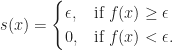
Define \[s(x)=\begin{cases}
\epsilon, &\text{if}\ f(x)\geq\epsilon\\
0, &\text{if}\ f(x)<\epsilon.
\end{cases}\]
Then $0\leq s(x)\leq f(x)$. Thus $\int_X f(x)\,d\mu\geq\int_X s(x)\,d\mu=\epsilon\mu(\{x\in X: f(x)\geq\epsilon\})$. Dividing both sides by $\epsilon>0$ gives the result.

Output:

If (X,\Sigma,\mu) is a measure space, f is a non-negative measurable extended real-valued function, and \epsilon>0, then \displaystyle \mu(\{x\in X: f(x)\geq\epsilon\})\leq\frac{1}{\epsilon}\int_X f\,d\mu.

Define \displaystyle s(x)=\begin{cases}  \epsilon, &\text{if}\ f(x)\geq\epsilon\\  0, &\text{if}\ f(x)<\epsilon.  \end{cases}
Then 0\leq s(x)\leq f(x). Thus \int_X f(x)\,d\mu\geq\int_X s(x)\,d\mu=\epsilon\mu(\{x\in X: f(x)\geq\epsilon\}). Dividing both sides by \epsilon>0 gives the result.

WordPress to Sina Weibo 微博 Automatic Posting

I recently discovered a way to post (automatically) from WordPress to Sina Weibo 微博(China’s version of twitter, which has more than half a billion users!)

The trick is to use IFTTT.com (If this then that).

Steps:

1) Setup up publicize for WordPress to Twitter. (WordPress.com can do this automatically).

2) Go to IFTTT.com, and set up a recipe from Twitter to Weibo. (There is a premade template for that, takes less than 5 minutes to sign up)

Done!

There may be a way for WordPress –> Weibo direct posting, I am still researching on that. (Update: Yes, there is a recipe for direct WordPress –> Weibo too!) It depends on whether you want a short summary, in which case WordPress –> Twitter –> Weibo may suit you better. If you want a full text, then WordPress –> Weibo is great. Or, you can use both!

Hope it is helpful!

weibo

无微不至:微博营销实战指南

《无微不至:微博营销实战指南》内容简介:企业如何利用微博进行营销?如何了解消费者的购买心理?如何把握微博的传播机制,发现用户的行为模式,找到有价 值的客户?如何挖掘数据价值,制定营销方案,实现营销的最佳效果?《无微不至:微博营销实战指南》从如何搭建企业微博营销平台、构建微博体系、塑造企业微 形象、选择微博营销模式,以及微博营销的技能、微博写作技巧等方面详尽地讲述微博营销的方法、技巧,具有实操性强,案例经典,拿来就能用的特点。在《无微 不至:微博营销实战指南》中,读者还会学到以下经典内容:微博营销已不是简单开个账户,发发帖子。微博传播永远是内容为王,无论是重口味,还是小清新,一 定要与草根文化血脉相通。写微博和说相声是一样的,要善于抖包袱,要在140字中写出跌宕起伏。10%的人影响了90%的人的购买行为,微博是影响他人购 买决策的一个有效工具。社交广告即将或者已经成为最主流的社会化营销解决方案。高质量的内容和互动永远是提高粉丝转发率、留住粉丝的不二法宝。中国移动、 中国电信应该如何做微博营销?《独唱团》爆单,快书包如何转危机为商机?如何打造企业官微?1000个真实的粉丝意味着什么?如何用微博编织人脉?微博内 容写作十大技巧是什么……

Wordads Review

How to make money online using WordPress

There are currently only three options for advertising on WordPress.com:

1) No Ads Option

2) The default free option

3) Wordads

(Source: http://wordads.co/faq/)

For those who have a custom WordPress.com domain, you can apply to Wordads, and Wordpress can run ads on all of your pages and you share in the income. (http://wordads.co/signup/)

Review: Wordads vs Adsense

AdSense isn’t an option on WordPress.com, so currently bloggers on WordPress.com have to use Wordads.

Some review online regarding the payment option of Wordads and Wordads earnings include:

One thing good (or bad) about Wordads is that it is impression based, clicking on ads is not required. This may be good since usually not many people click on ads. On the other hand, impression based ads tend to have lower pay rates.

Wordads Tips

Be sure to select a Wordads-friendly theme. (I am using the Coraline Theme) This enables you to select the option “Show additional ad units” which would show additional ad units on your blog. This could potentially triple your ad impressions.

Any comments about Wordads? Feel free to drop a comment below!